
Your own API key
Choose OpenAI, Claude, or Gemini, paste your key once, and log meals by text or photo with AI, without an Intake AI subscription.
Bring your own key (BYOK) lets Intake use an AI provider account that belongs to you. Only the correction view and nutrition-label scanning need Intake AI. Provider, optional model name, API key: that is all Intake needs.
What is an API key?
Section titled “What is an API key?”An API key is like a private password between an app and an online service. It tells the provider which account is making a request, so the provider can process it and assign any usage to that account.
AI providers measure usage in tokens: small pieces of text sent to and returned by a model. A short meal description uses fewer tokens than a long conversation or a detailed photo analysis.
An API account is separate from consumer subscriptions such as ChatGPT Plus or Claude Pro. Follow your chosen provider’s billing instructions if it asks you to add credits or a payment method.
Create a key
Section titled “Create a key”Open your provider’s official key page, sign in or create an account, then create a new secret key. Copy it right away, because the provider may show the complete key only once.
OpenAI
Section titled “OpenAI”Uses your OpenAI API account and its current usage pricing. Create an API key with OpenAI
Claude
Section titled “Claude”Uses your Claude API account and its current usage pricing. Create an API key with Claude
Gemini
Section titled “Gemini”Google currently offers a limited free tier for certain models and regions. It has usage limits and may be changed or withdrawn by Google in the future. Create an API key with Gemini
Add the key in Intake
Section titled “Add the key in Intake”You only need to set this up once. You can return to Settings later to change the provider, model, or key.
-
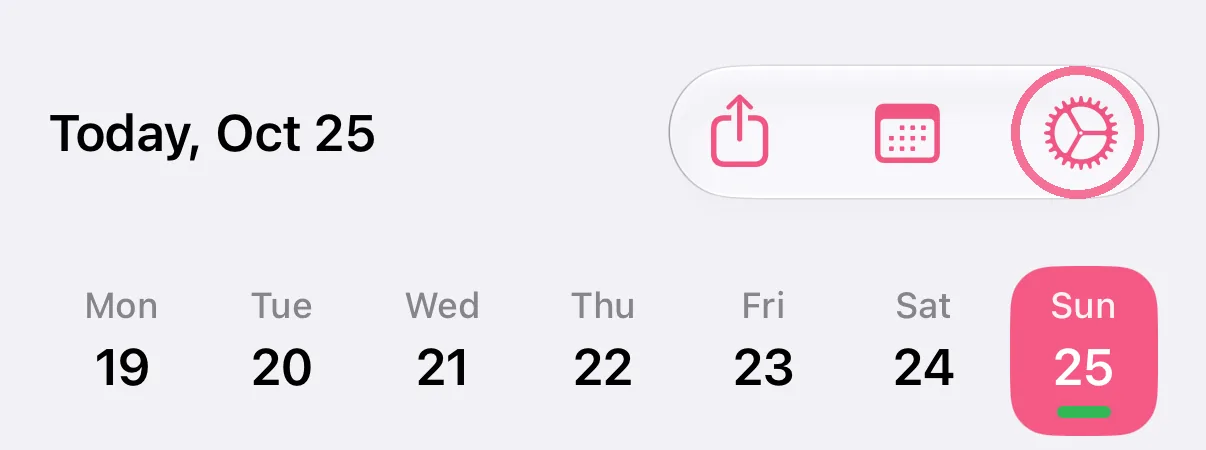
On Today, tap the gear at the top.
-
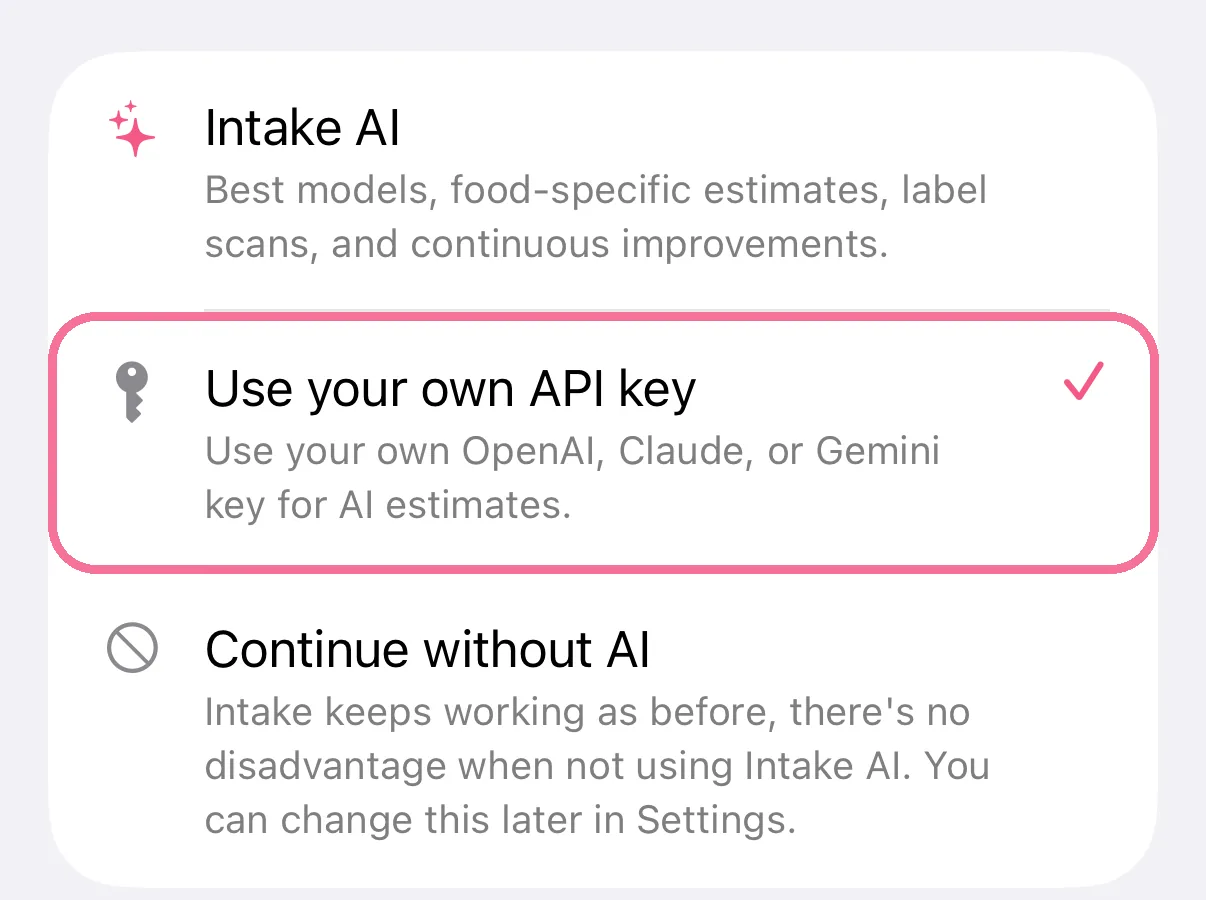
In Settings, tap Intake AI under Integrations and choose “Use your own API key”.
-
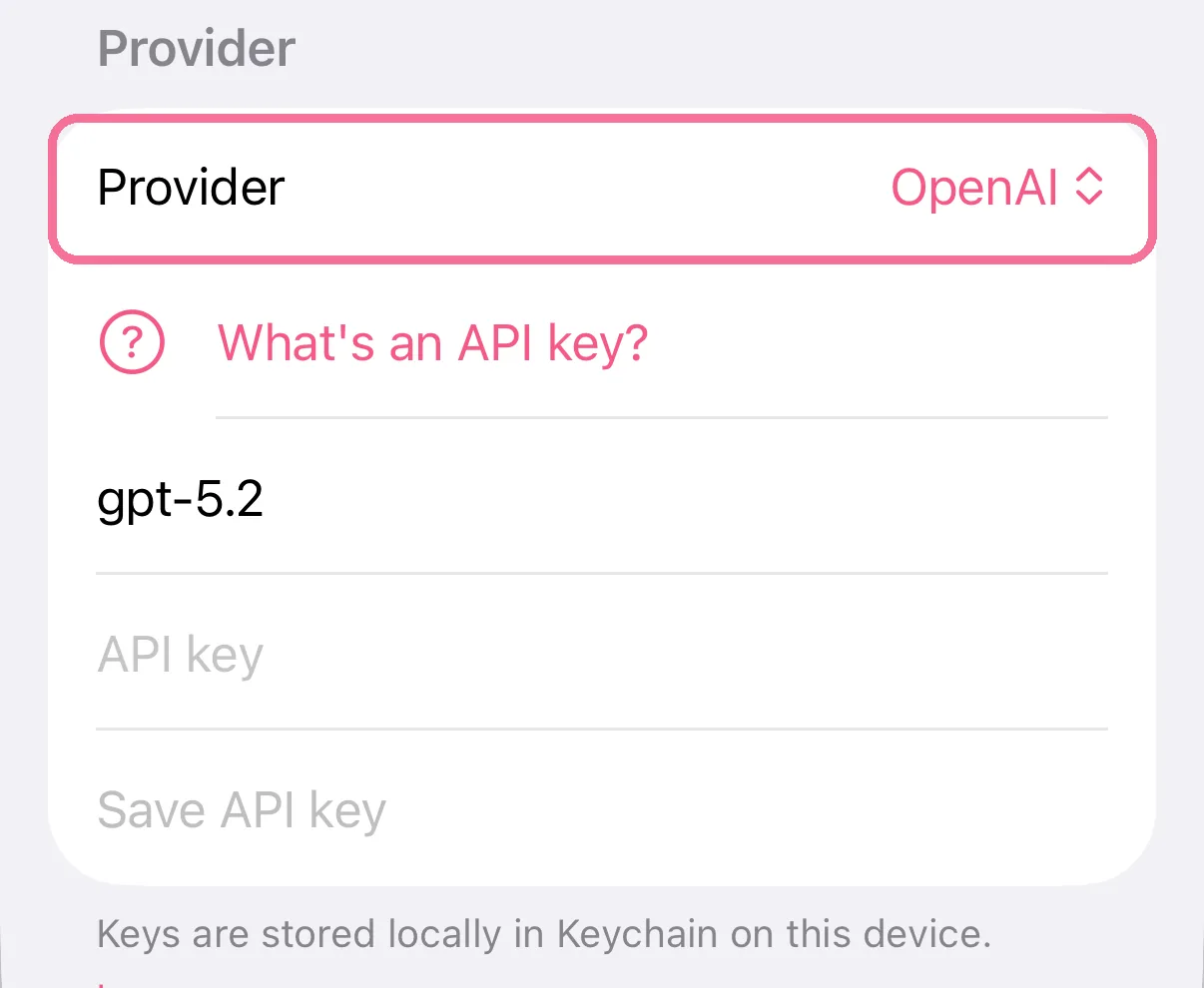
Choose the same provider you used to create your key. A key from one provider cannot be used with another.
-
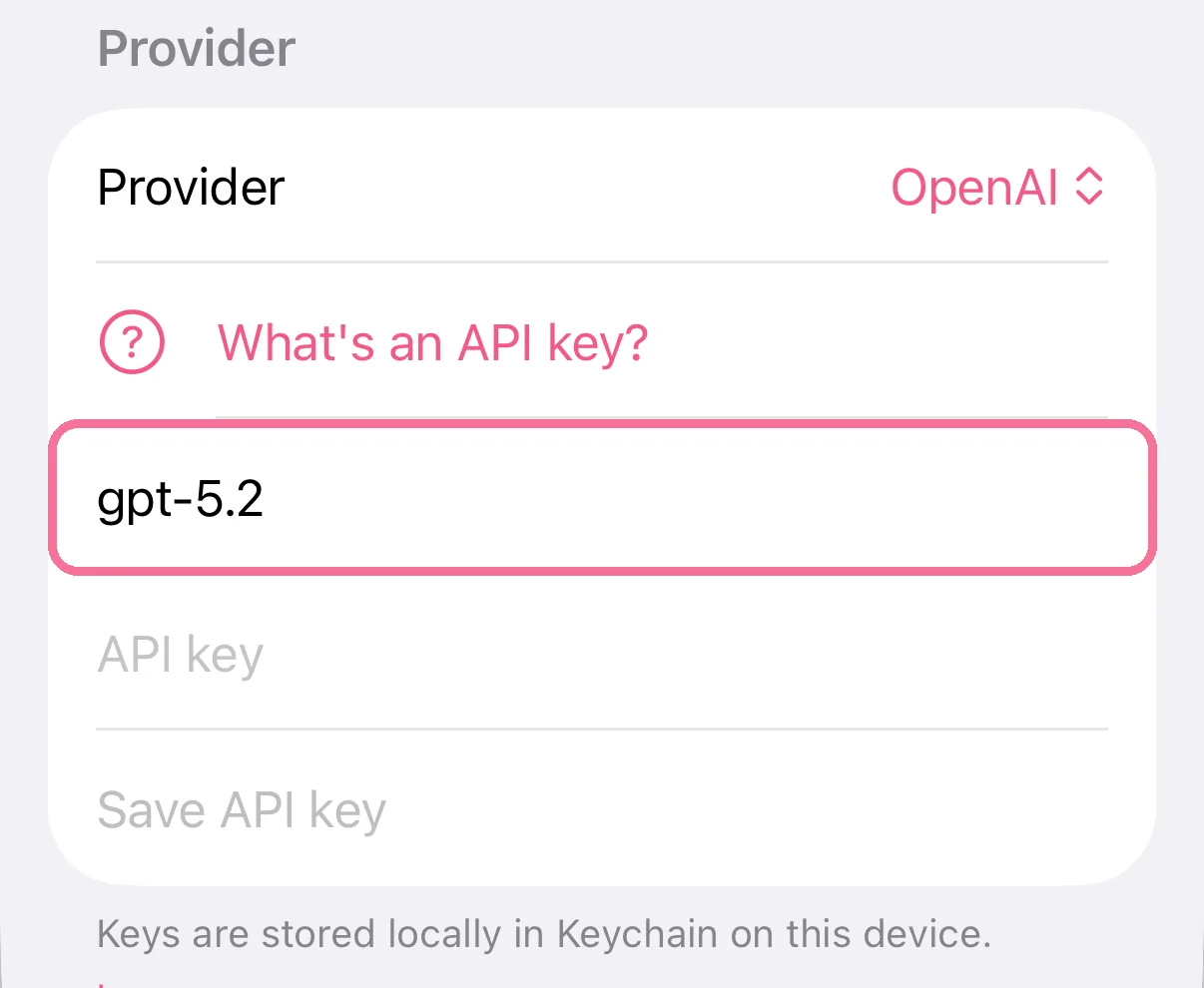
Keep the default model. Only change the model name when you know the exact name of a supported model.
-
Paste the complete key without adding spaces, save, then send a short meal description to check that everything works.
-
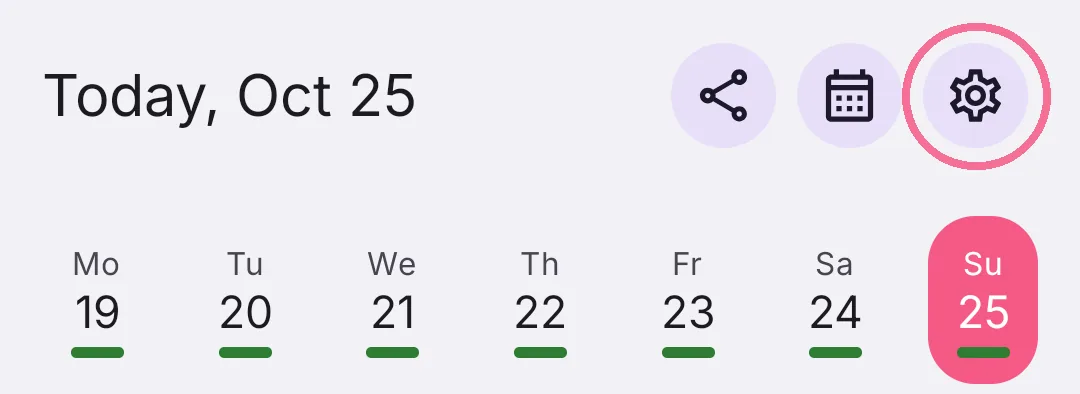
On Today, tap the gear at the top.
-
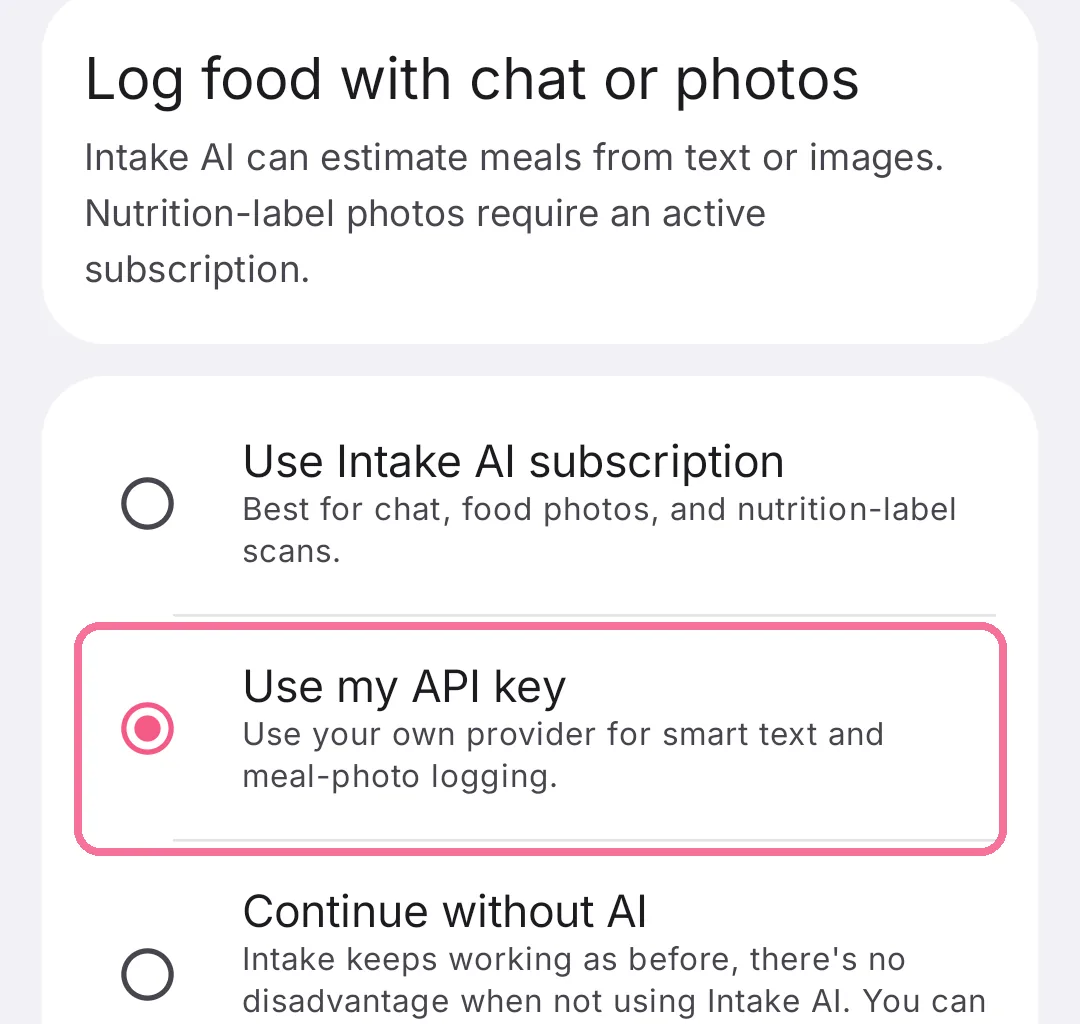
In Settings, tap “Intake AI”, then the circle next to “Use my API key”.
-
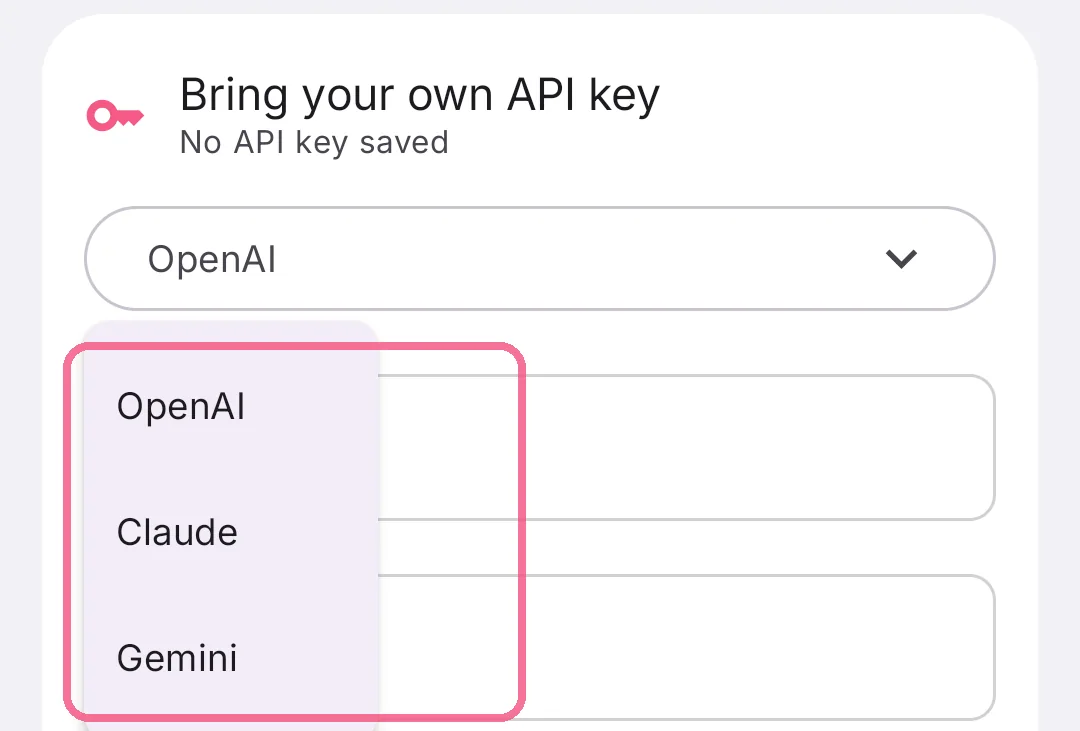
Under “Bring your own API key”, choose the provider you created your key with: OpenAI, Claude or Gemini.
-
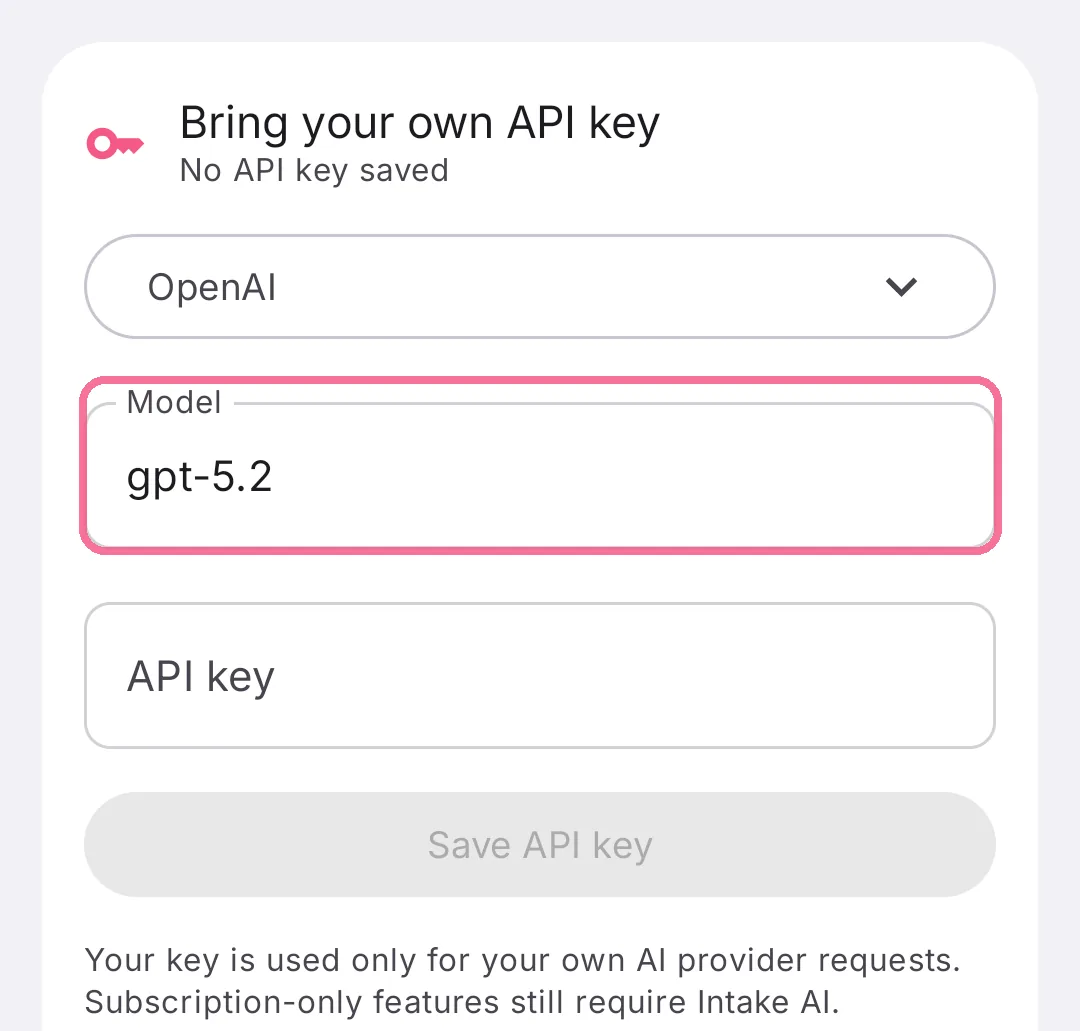
Keep the default under “Model”. Only change it when you know the exact name of a supported model.
-
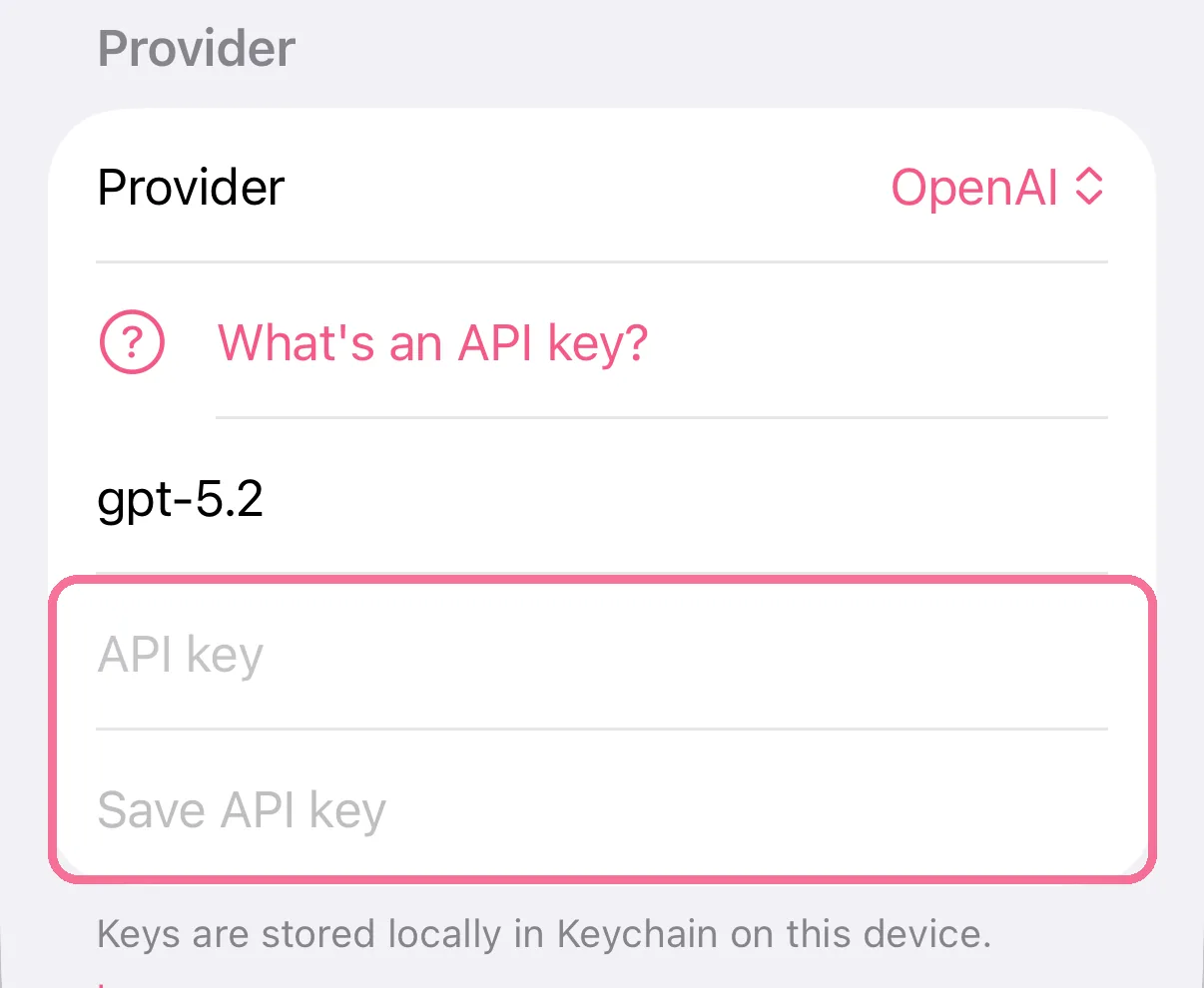
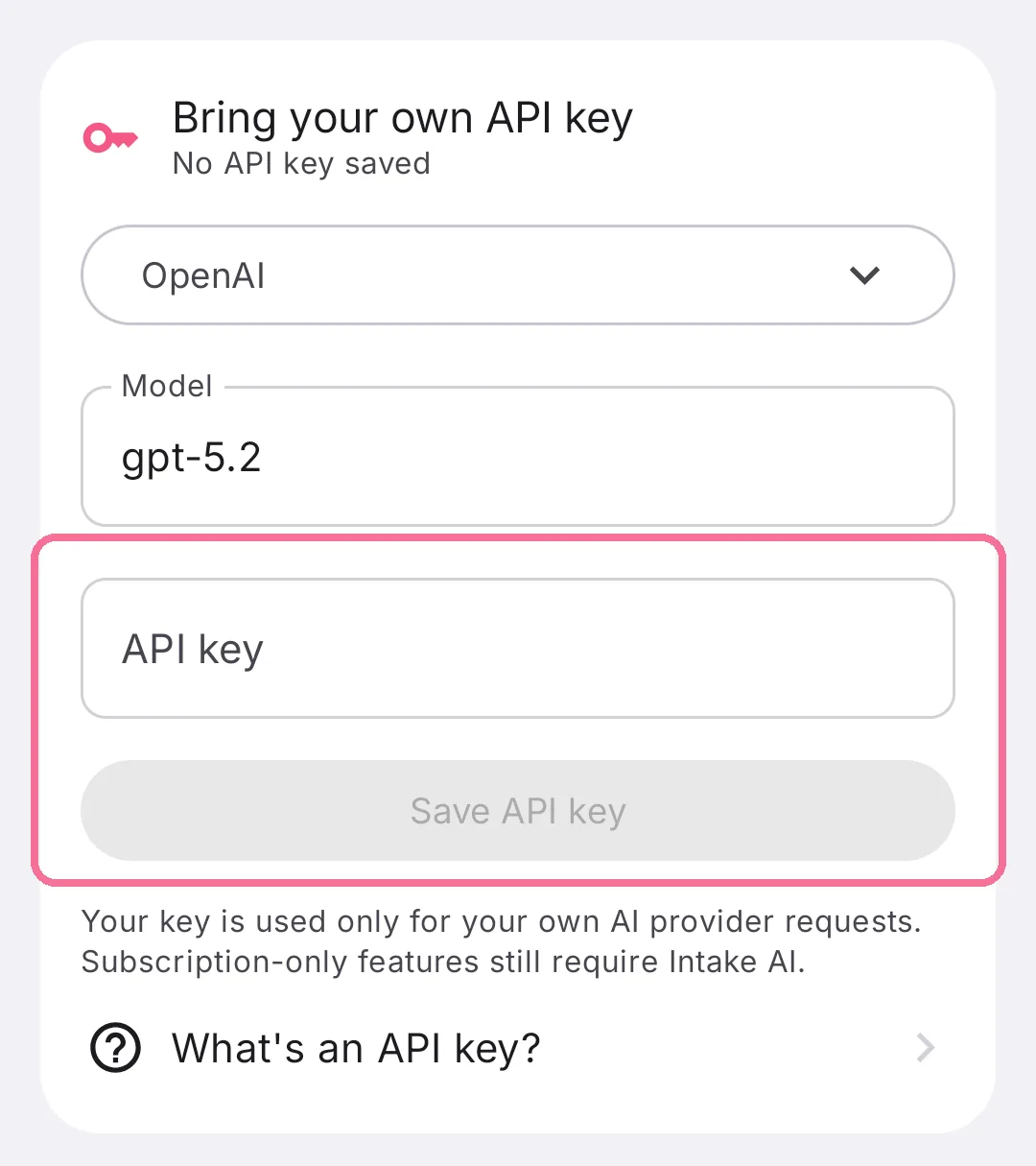
Paste the complete key under “API key” without spaces, tap “Save API key”, then test with a short meal description.
Your key stays on your device
Section titled “Your key stays on your device”Your API key is stored securely only on your device. The key itself never leaves your device and is never sent to or stored by Intake.
When you use BYOK, Intake sends your food request directly from your device to the provider you selected. The provider processes that request under its own terms and privacy policy.
BYOK has no Intake AI subscription charge. Your provider may charge for the API usage it processes, usually based on input and output tokens. Some providers require prepaid credits or billing setup, so check their current terms and pricing.
If it does not work
Section titled “If it does not work”- The key is reported as invalid: create a new key, copy the complete value, and make sure the selected provider matches the key.
- The provider reports a billing or credit error: open the provider’s billing page. Your API account may need credits, a payment method, or an active billing project.
- The model cannot be found: clear the custom model field to return to Intake’s default, or check the exact current model name in the provider’s documentation.
- Gemini stops responding: the free-tier request or token limit may have been reached. Wait for the limit to reset or review the current quota in Google AI Studio.
Start with a simple request, review the AI estimate, and correct anything that does not look right before saving it.