
Weekly budget
The weekly budget is the sum of your day goals from Monday to Sunday. What you don’t eat one day stays available for the rest of the week, and what you eat on top is taken from it.
-
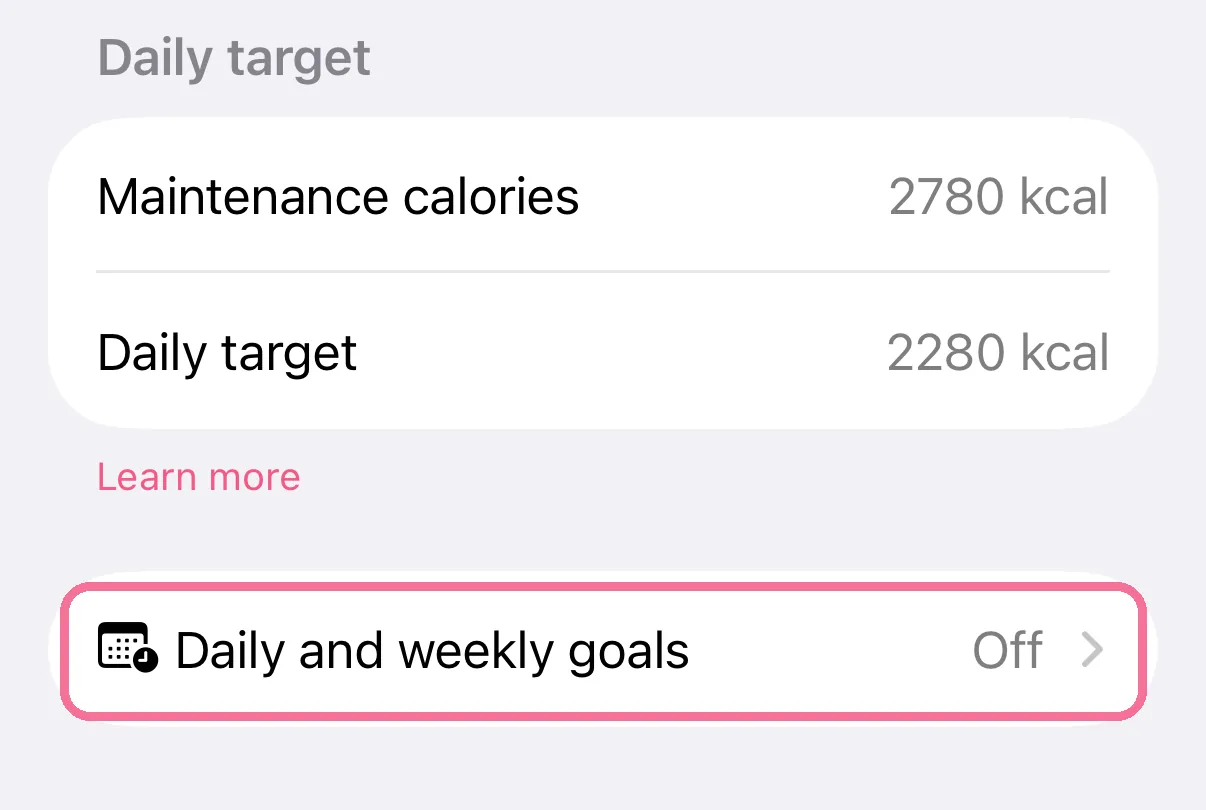
On Today, tap the gear at the top, then “Calories” and “Daily and weekly goals”.
-
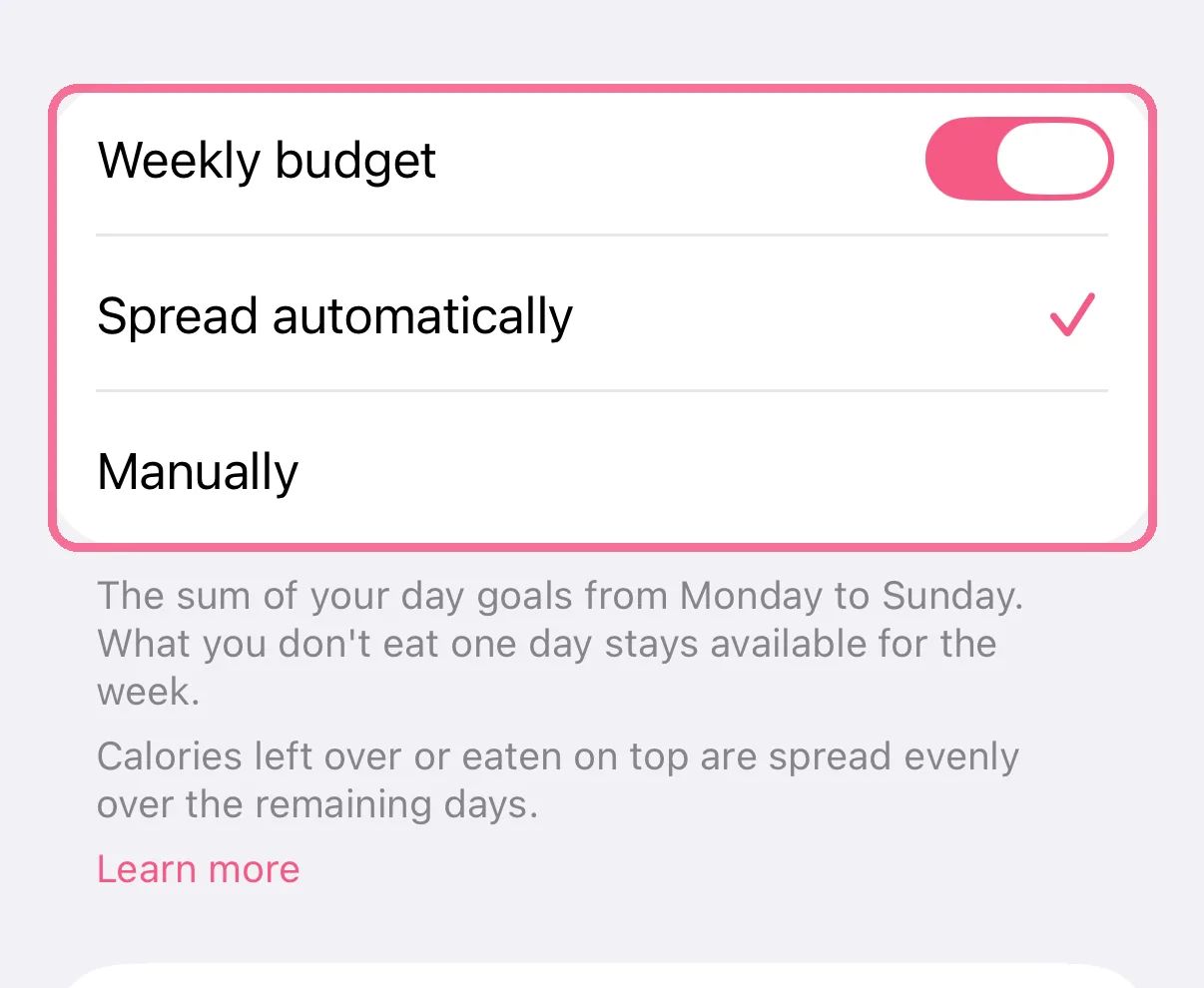
Turn on “Weekly budget” and choose “Spread automatically” or “Manually”.
-
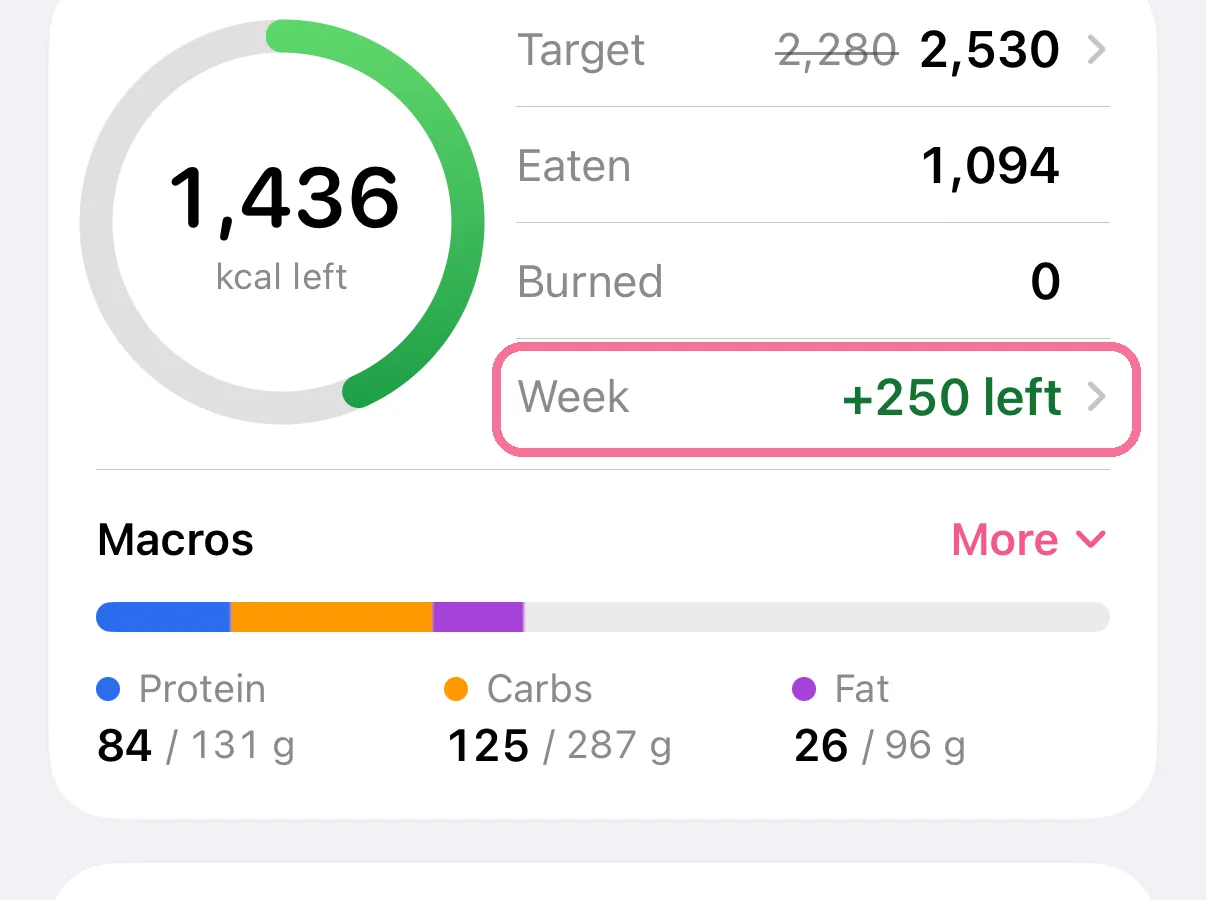
On Today, the “Week” row in the calorie ring card shows what is left this week, or how far over you are.
-
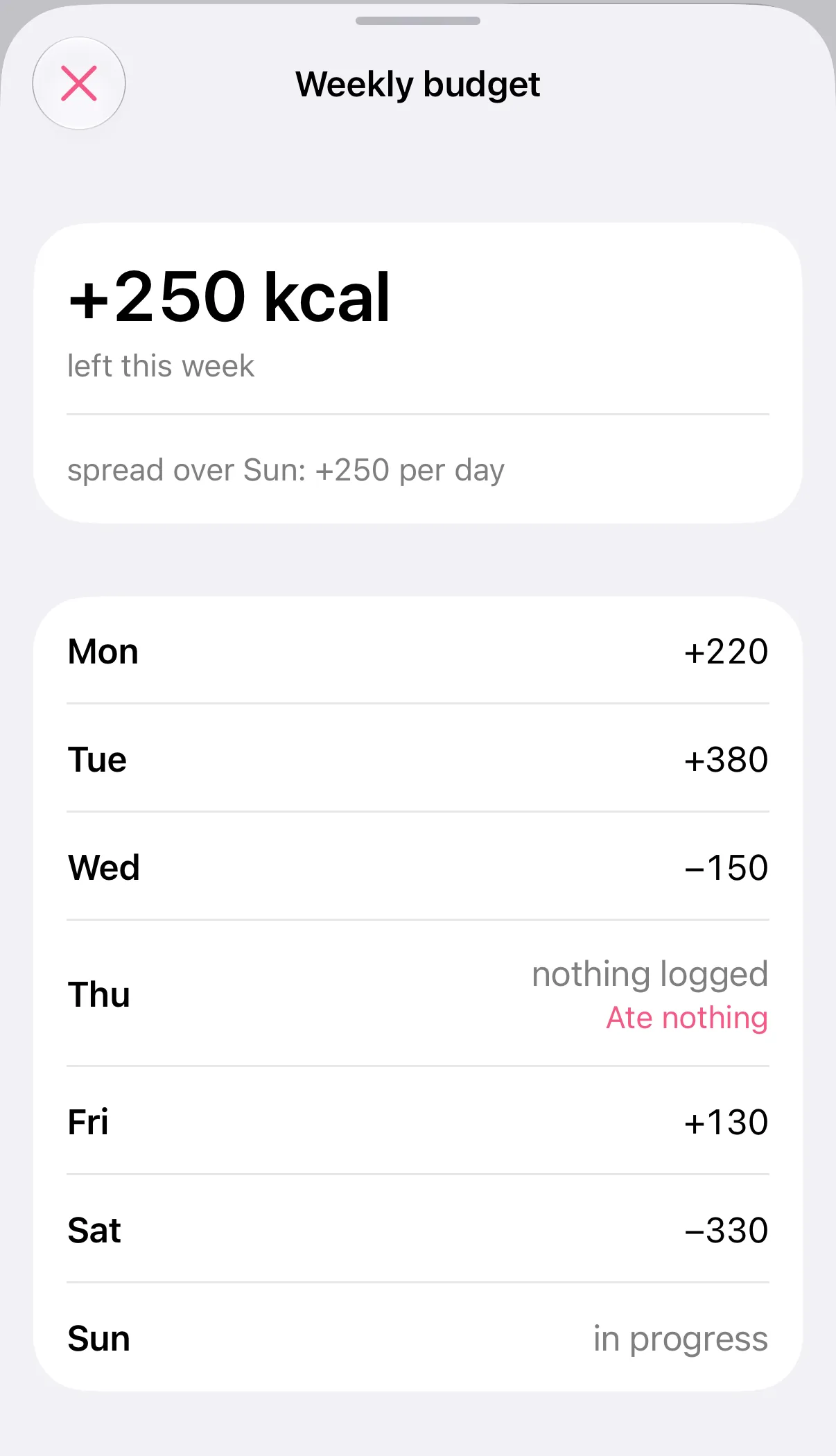
Tap “Week” to open the overview with every day of the week.
-
On Today, tap the gear at the top, then “Calories”.
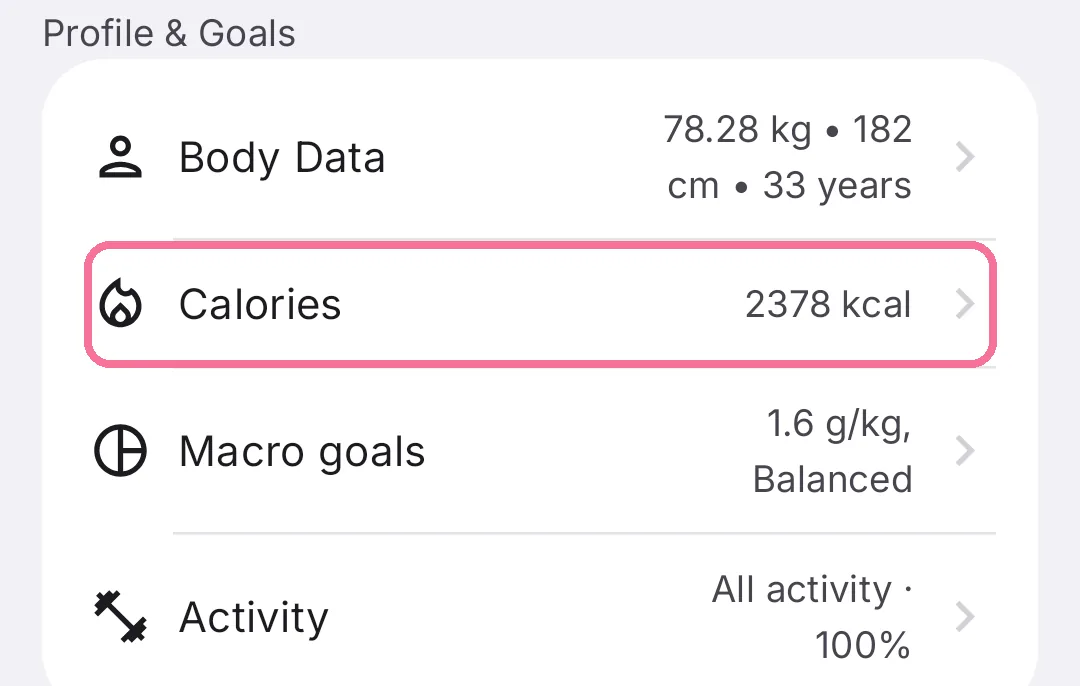
-
Scroll to “Weekly budget”, turn it on and choose “Spread automatically” or “Manual”.
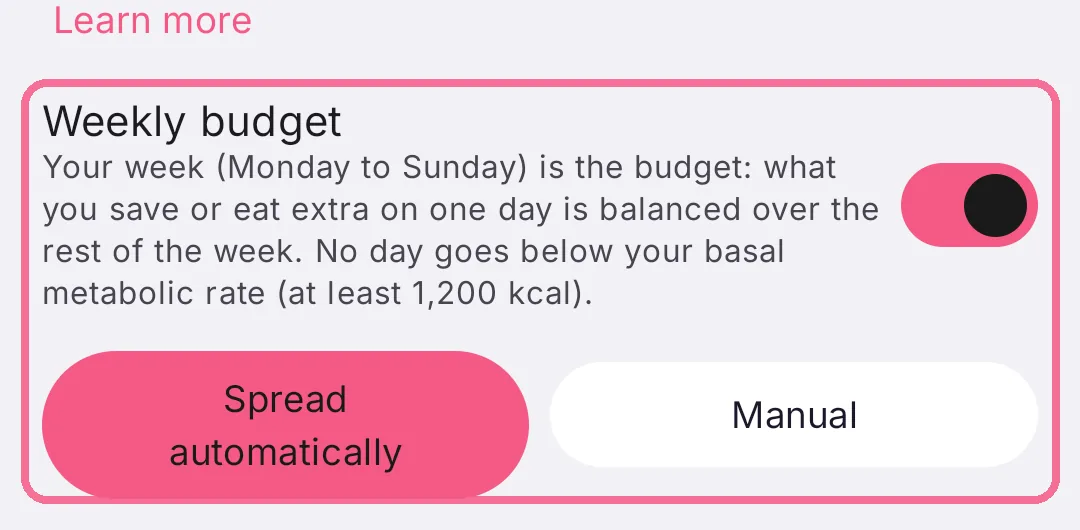
-
On Today, the “Week” row in the calorie ring card shows what is left this week, or how far over you are.
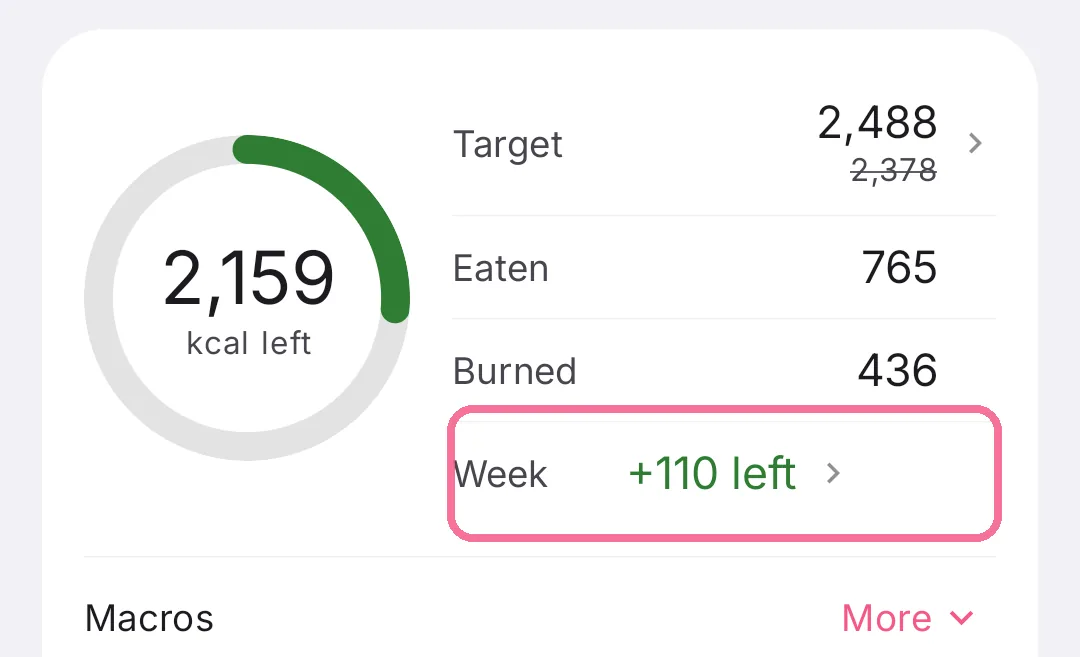
-
Tap “Week” to open the overview with every day of the week.
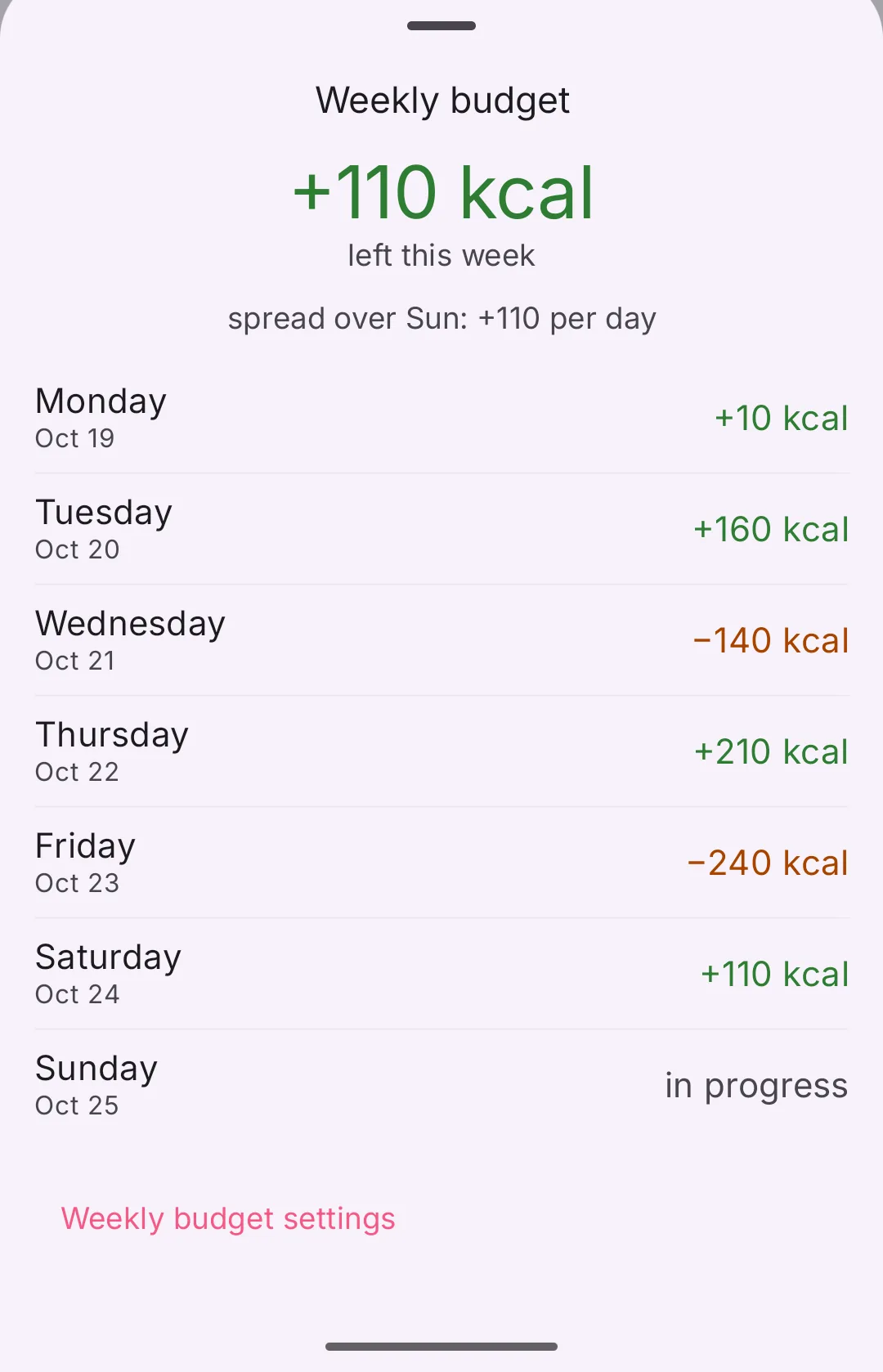
How Intake counts
Section titled “How Intake counts”- A past day counts once it has entries or is marked “Ate nothing”. A day showing “nothing logged” is left out and doesn’t change the balance.
- Today is “in progress” and only counts once the day is over.
- The balance is what was left over on the counted days, minus what you ate on top.
- Every Monday a new week starts with a fresh balance.
Automatic or manual
Section titled “Automatic or manual”- Spread automatically: Intake spreads the balance evenly over today through Sunday, so your day goals go up or down on their own. No day drops below your basal metabolic rate, and never below 1,200 kcal. Whatever doesn’t fit stays in the balance.
- Manually: your day goals stay as planned. You put leftover calories on a day yourself, with “Move balance” in the overview (Android: “Move from weekly balance”) or through “Target” > “Taken from” > “From the weekly balance”. On Android that section is called “Where do the calories come from?”.
If you deliberately ate nothing on a day, mark it “Ate nothing” in the overview. Otherwise it shows “nothing logged” and doesn’t count.