
Export your data
Under “Data” you save your Intake data as a JSON file and load it back later. When you import, the file replaces the data on this device.
-
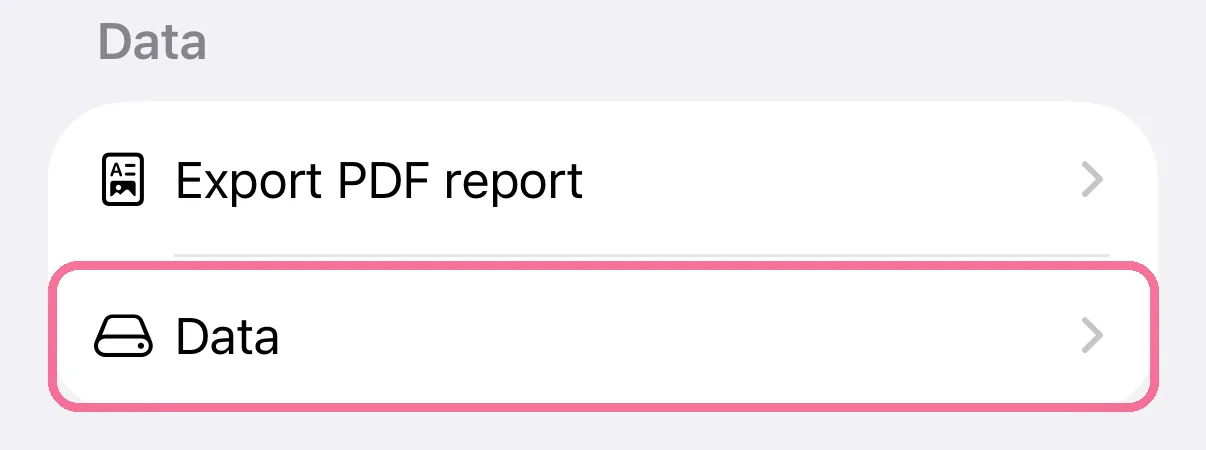
On Today, tap the gear at the top, then “Data” under “Data”.
-
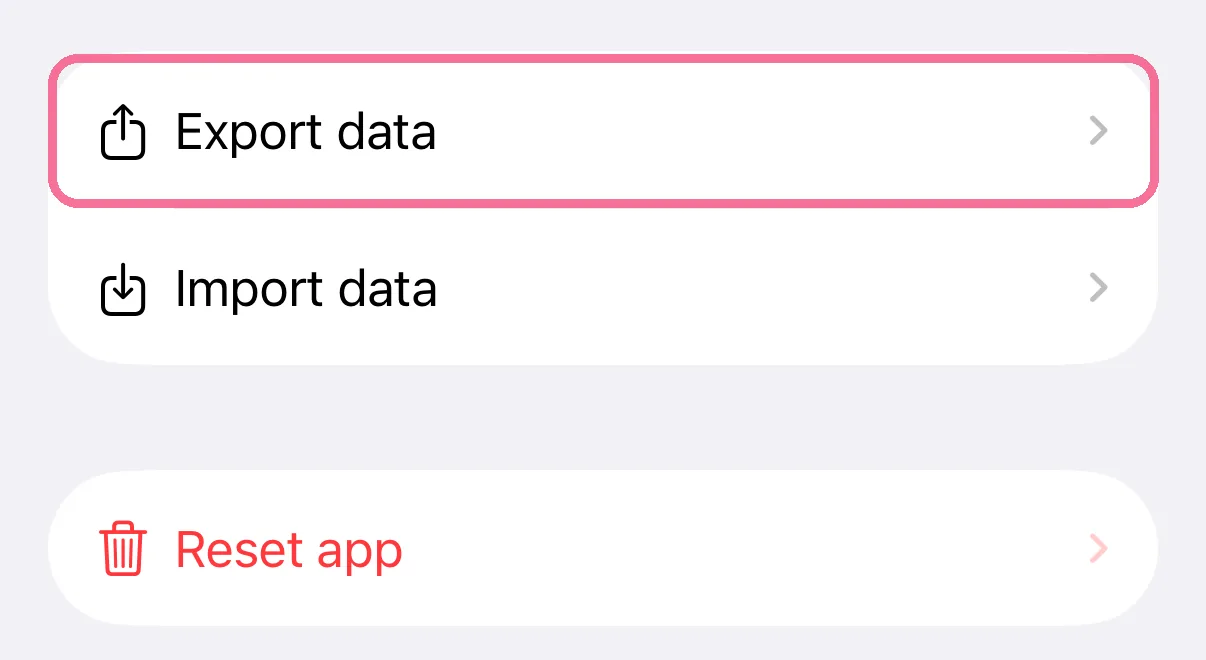
Tap “Export data” and choose where the file goes in the share sheet, for example “Save to Files”.
-
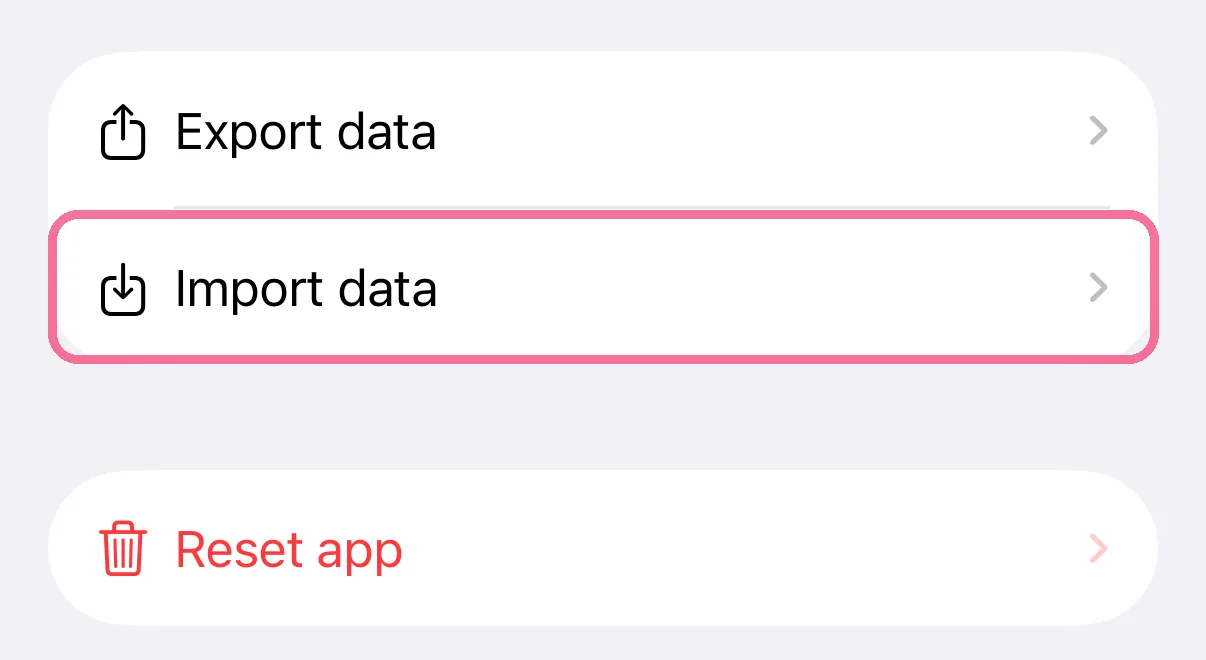
To restore, tap “Import data” and choose the file.
-
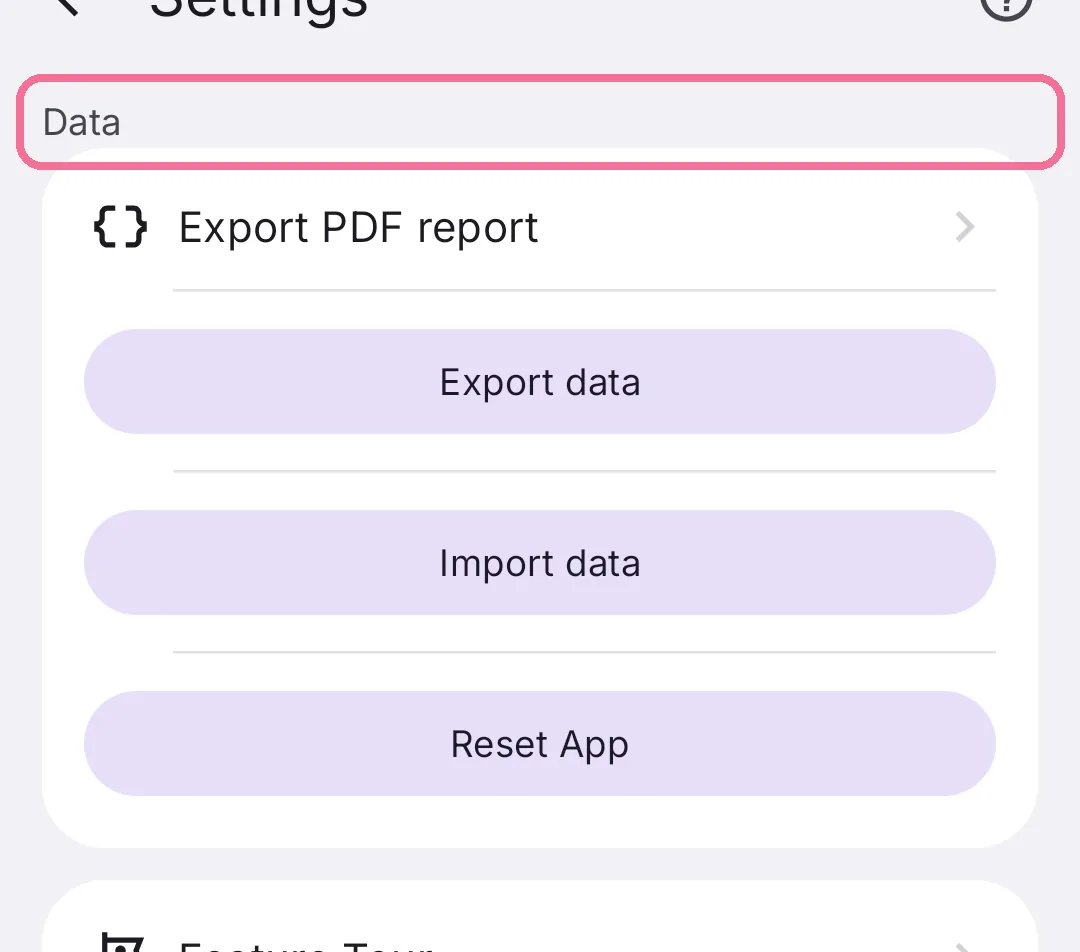
On Today, tap the gear at the top and scroll to “Data”.
-
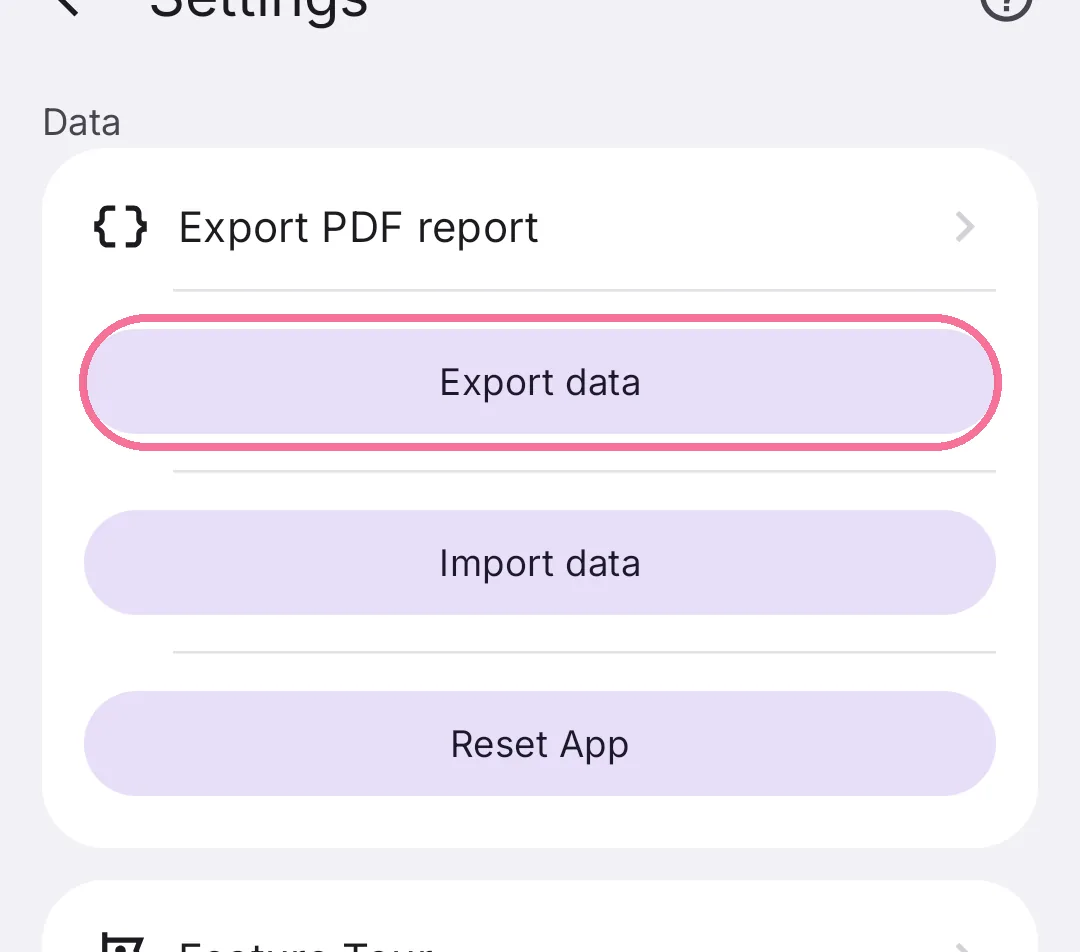
Tap “Export data” and choose where the file goes.
-
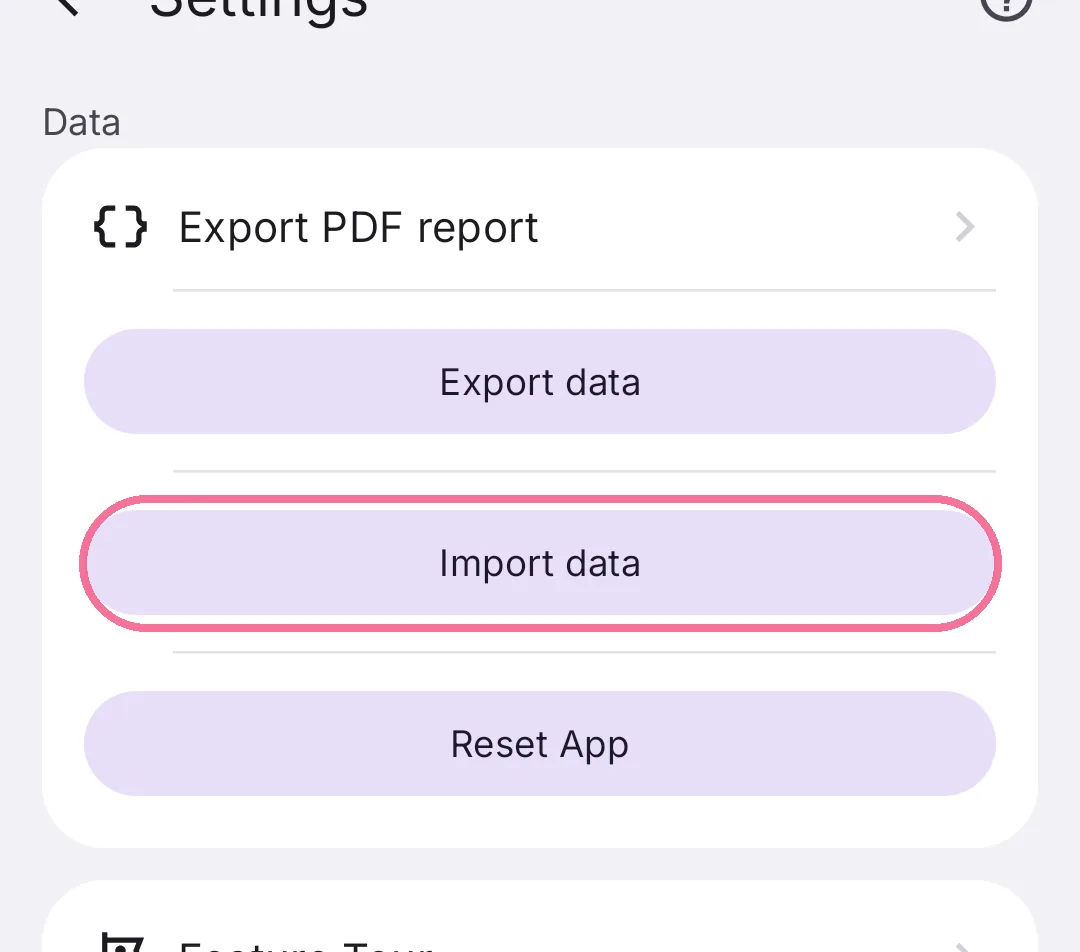
To restore, tap “Import data” and choose the file.
The file isn’t encrypted, so keep it somewhere safe. For a report to read or to show your doctor, use the PDF report.
On iPhone, the file holds your profile and goals, diary, library, recipes, own products and body measurements, but no photos. Importing replaces exactly this data on the device. You also find “Export debug log” there, which you only need if support asks for it.